“Could you take a quick look?” I hear that question a lot when someone is setting up the DV-Box, FMNetWeb or the Icom Web-Remote. Explaining over the phone where each tick box is takes a long time. It is much faster when I can see the screen myself. That is exactly what remote support is for.
I use RustDesk for it. It is free remote desktop software whose source code is openly available on GitHub. It runs on Windows, macOS, Linux, Android and iOS, needs no account and can be run with your own server. My download page offers it as “DF6AX Remote Support”, ready configured for my server.
How a RustDesk connection works
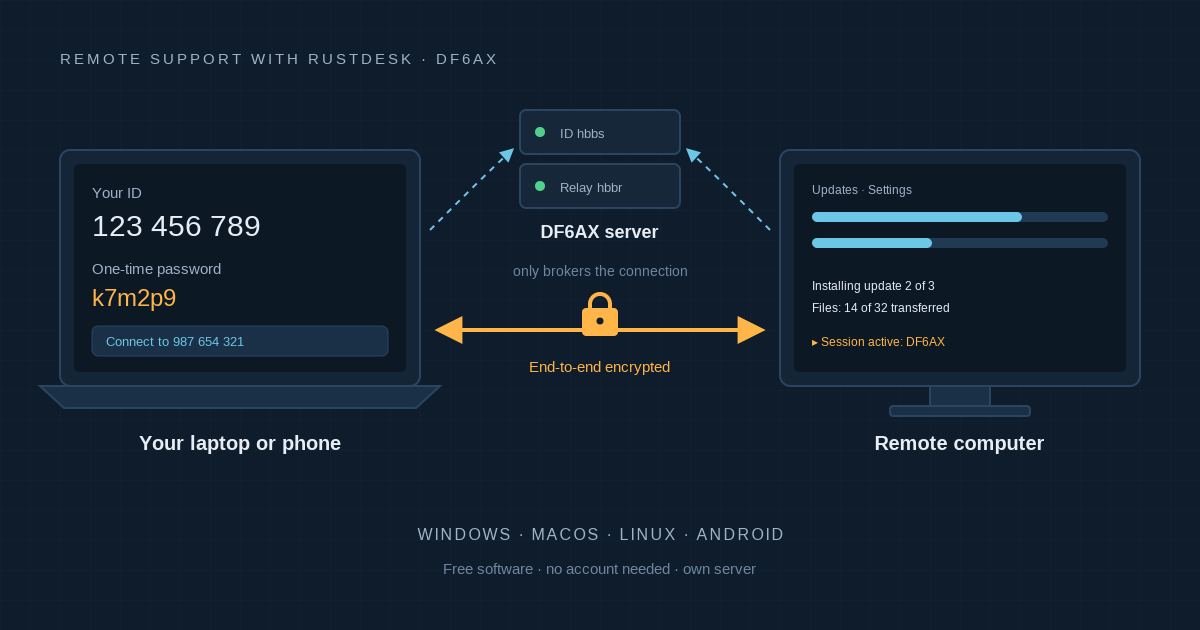
Every computer running RustDesk has a fixed ID, a nine-digit number, and a password. Both are shown on the left of the main window. To connect, you enter the other side’s ID on the right under “Control Remote Desktop” and then the password. The remote screen then appears in a window, and your mouse and keyboard control the remote computer.
Two services work in the background. The ID server (hbbs) acts as a broker: it knows at which address an ID can currently be reached and helps both sides build a direct connection. If that fails, for example because both are behind a strict router or a mobile connection with CGNAT, the relay server (hbbr) passes the data through. The session itself is end-to-end encrypted, so even the server cannot read the screen contents.
RustDesk’s public servers are free but often busy and slow. That is why DF6AX Remote Support uses its own ID and relay server. It changes nothing about how you use it, except that you do not have to enter anything. The one thing that matters: both sides must use the same server. If you want my help, please use DF6AX Remote Support rather than RustDesk from an app store.
Getting help in three steps
Once we have arranged a session by phone or e-mail, this is what you do:
- Download: Get the file for your system from the download page. The one that matches your device is highlighted there.
- Start: On Windows, double-click the .exe. You do not need to install anything for a one-off session. On a Mac, open the .dmg and drag the app into “Applications”.
- Read out the ID and password: Tell me the ID and the one-time password shown. As soon as I connect, RustDesk shows a small window with my name in the bottom right corner. You can end the session at any time with “Disconnect”.
If you set it up that way (see below), the one-time password changes after every session. Anyone who knows yesterday’s password cannot get in today.
What to allow on each system
On first start, Windows Firewall asks whether RustDesk may communicate on the network. Confirm with “Allow access”. SmartScreen may warn about an “unrecognised app”; click “More info” and then “Run anyway”.
If you only run RustDesk without installing it, the remote side cannot operate User Account Control (UAC) prompts, the “Do you want to allow…” dialogs. For installations that need admin rights, you confirm those prompts yourself at the computer. When installed, RustDesk runs as a service and can also control UAC prompts and the sign-in screen.
macOS protects the screen and input strictly. RustDesk needs three permissions under System Settings → Privacy & Security:
- Screen & System Audio Recording, so the other side can see the picture,
- Accessibility, so mouse and keyboard work,
- Input Monitoring, so keystrokes arrive.
RustDesk shows buttons on start-up that jump straight to the right place. After ticking the boxes, quit RustDesk once and start it again. If the other side sees only a black screen or just the wallpaper, Screen Recording is usually missing.
Install the package with sudo apt install ./df6ax-fernwartung-x86_64.deb. After that it depends on the graphical session: under X11 everything works without prompts, including unattended access. Under Wayland (the default on current Ubuntu and Debian with GNOME) the system asks for every session whether the screen may be shared, and someone at the computer has to click “Share”.
For a computer that should be reachable with nobody present, sign in with X11: click the gear icon in the bottom right of the login screen and choose “Ubuntu on Xorg”. To make it permanent, add the line WaylandEnable=false to /etc/gdm3/custom.conf.
Install the app from the .apk file; Android asks once whether your browser may install apps. On the Android device, tap “Start service” and allow screen capture. So that the other side can also tap and swipe, go to Settings → Accessibility → Installed apps and turn on input control for DF6AX Remote Support.
Many manufacturers kill background apps to save battery. Exclude the app from battery optimisation, otherwise the connection drops as soon as the screen turns off. It also works the other way round: you can control a PC from your phone by entering its ID at the top.
Reaching your own computer while away
RustDesk is also handy for your own computer at home: fetching a forgotten file while you are away, installing updates or checking that everything is running. For that, the computer must be reachable with nobody sitting at it. RustDesk calls this “unattended access”.
- Install it: On Windows, choose “Install” in the main window. Only then does RustDesk run as a service, start with Windows and work even before anyone signs in.
- Set a permanent password: Under “Security” in the settings, choose your own long password. At least 12 characters, and not the same as your e-mail or Windows password. You can keep using the one-time password for helpers alongside it.
- Do not let it sleep: Turn off sleep in the power options, or the computer will be unreachable after an hour. If you want to save power, wake the PC with Wake-on-LAN through your router.
- Start automatically after a power cut: The BIOS/UEFI usually has an option such as “Restore on AC Power Loss”. Set to “Power On”, the PC boots by itself after a power failure.
On the other side, the laptop or phone you connect from, add the computer to the address book or favourites and give it a name. From then on, a double-click is all it takes.
Staying safe: the key rules
Anyone who knows the ID and password is effectively sitting at your computer. Scammers exploit exactly that: they call, pretend to be Microsoft, your bank or your phone company, and ask you to install a remote support program. So:
- Only on your own initiative. Give your ID and password only to someone you know and have asked for help yourself. No reputable company calls out of the blue and asks for remote access.
- Renew the one-time password after every session. In the security settings you can make the one-time password change after each connection. You can also renew it immediately in the main window with the arrow icon next to the password.
- Limit permissions per session. The small connection window shows what the other side may do: keyboard and mouse, clipboard, file transfer, audio, restart. Switch off whatever is not needed.
- Two-factor sign-in for permanent access. For a computer with a permanent password, two-factor authentication from the security settings is worth it. A code from an authenticator app is then required as well.
- Watch and disconnect. During a session RustDesk always shows that someone is connected. If anything seems odd, click “Disconnect” or close the program.
- Stay up to date. I publish new versions on the download page. Check there with the SHA-256 checksum that the file is unaltered.
Useful features during a session
The connection window has a toolbar at the top. Some features save a lot of time:
- File transfer: The folder icon opens a file manager with both computers side by side. A new configuration file, for example, lands straight in the right folder.
- Chat: For short notes, such as a password you would rather not read out, or a link.
- Send Ctrl+Alt+Del: Your own computer would otherwise catch this key combination. Use the “Actions” menu to send it to the remote side.
- Remote restart: “Restart” in the actions menu reboots the remote computer, and RustDesk reconnects automatically afterwards. This only works if RustDesk is installed there.
- Multiple screens: If the remote side has several monitors, switch between them with the monitor icons in the toolbar or show them all side by side.
- Image quality: On a slow connection, choose “Optimise reaction time” under “Display”. On your home network you can go for “Best image quality”.
- Privacy mode: On Windows, the local screen goes black while you work. Handy if others in the room should not read along.
- TCP tunnel: RustDesk can bring a port from the remote network to your computer. That way you can open the web interface of a device on the remote home network, such as a Raspberry Pi, in your own browser without opening a port on the router.
Frequently asked questions
Does DF6AX Remote Support cost anything?
No. RustDesk is free software under the AGPL-3.0, and I run the server myself. No account is needed.
Can I use the normal RustDesk from an app store instead?
Yes, but it then connects to the public RustDesk servers. Both sides must use the same server. For a session with me, please use DF6AX Remote Support from the download page.
Do I need to open ports on my router?
No. RustDesk builds the connection from the inside out. If no direct connection is possible, the relay server passes the data through. This also works over mobile data.
The other side only sees a black screen. What now?
On a Mac, the “Screen Recording” permission is almost always missing. On Linux with Wayland, someone at the computer has to confirm screen sharing, or you sign in with X11. On Windows, installing RustDesk instead of just running it helps.
Is there a version for iPhone and iPad?
Not on my site. With RustDesk from the App Store you can control other computers from an iPhone, provided you enter the server there. Because of Apple’s rules, an iPhone itself cannot be controlled remotely.
How do I remove the program?
On Windows via Settings → Apps, on a Mac by deleting it from “Applications”, on Linux with sudo apt remove df6ax-fernwartung, on Android like any other app. If you only ran it without installing, nothing is left behind anyway.
The bottom line
RustDesk is a lean, open solution for two cases: quick help where I look at your screen, and permanent access to your own computer. For help, all it takes is downloading, starting and reading out the ID and one-time password. Permanent access calls for installing it, a strong permanent password and two-factor sign-in.
More about RustDesk itself is in the official documentation, and the source code is on GitHub.