AX-Spot FM hotspot
What is it?
The AX-Spot is an FM hotspot: it connects an ordinary 70 cm handheld to the FM-Funknetz (a network of SvxLink reflectors). You talk into your handheld on a local frequency, the hotspot passes the signal into the network – and vice versa. Everything is controlled via a mobile web interface (phone, tablet or PC).
The AX-Spot runs on two hardware variants: with the DJspot board or with the Belgium-Spot board. Both are set up by the same installer and have the same web interface and the same features.
Hardware required: two variants
You need one of the two radio boards on a Raspberry Pi. Which one makes no difference to operation – the differences lie only in the pin assignment, and the installer knows about that.
| Variant 1: DJspot | Variant 2: Belgium-Spot | |
|---|---|---|
| Radio board | DJspot (BV5D design), module in socket Radio1 | Belgium-Spot |
| Radio module | NiceRF SR-FRS-0W5V, UHF 400–480 MHz, 0.5 W | NiceRF SA818S, UHF, up to 1 W |
| Audio | WM8960 (I²S) | WM8960 (I²S) |
| Tested on | Raspberry Pi 3B+, Raspberry Pi OS 64-bit | Raspberry Pi Zero 2 W, Raspberry Pi OS 13 (Trixie) 32-bit |
| PTT | GPIO13, active high | GPIO16, active low |
| COS (squelch) | GPIO26, active high | GPIO12, active low |
| CTCSS command | index (e.g. 10) | four digits (e.g. 0010) |
| Module control | UART /dev/ttyAMA0, 9600 baud | UART /dev/ttyAMA0, 9600 baud |
| Choice in the installer | 1 – DJspot | 2 – Belgien-Spot |
For both variants you also need:
| Part | Description |
|---|---|
| Raspberry Pi | with a soldered 40-pin header (Pi 3B+, Pi 4, Pi Zero 2 W/WH) |
| microSD card | 16 GB or larger (Class 10 / A1 recommended) |
| Power supply | 5 V / 2.5 A, suitable for the Pi |
| UHF antenna | 70 cm antenna with a connector matching the radio module |
| Network | LAN or Wi-Fi (connection to the FM-Funknetz); the Pi Zero 2 W only has Wi-Fi |
The board selection is saved and kept across updates. To set it without being asked (e.g. via a pipe), use DJSPOT_BOARD=djspot or DJSPOT_BOARD=belgien, for example
sudo DJSPOT_BOARD=belgien bash install.shInstallation
Run on a fresh Raspberry Pi OS:
wget https://df6ax.de/djspot/install.sh
sudo bash install.sh
The installer asks which radio board is fitted (DJspot or Belgium-Spot), then for the callsign and auth key for the FM-Funknetz. It sets up the hardware (WM8960 audio, UART, I²C, GPIO), installs SvxLink, the web interface and the German voice announcements, and starts everything. At the end it shows the address, e.g. http://192.168.1.50:8080/. You make all further settings there.
Setup without a network (setup AP)
If the hotspot finds no reachable Wi-Fi or LAN when it starts, it automatically opens its own setup Wi-Fi network after a short wait:
WLAN-Name (SSID):  DJspot-Setup
Passwort:          12345678
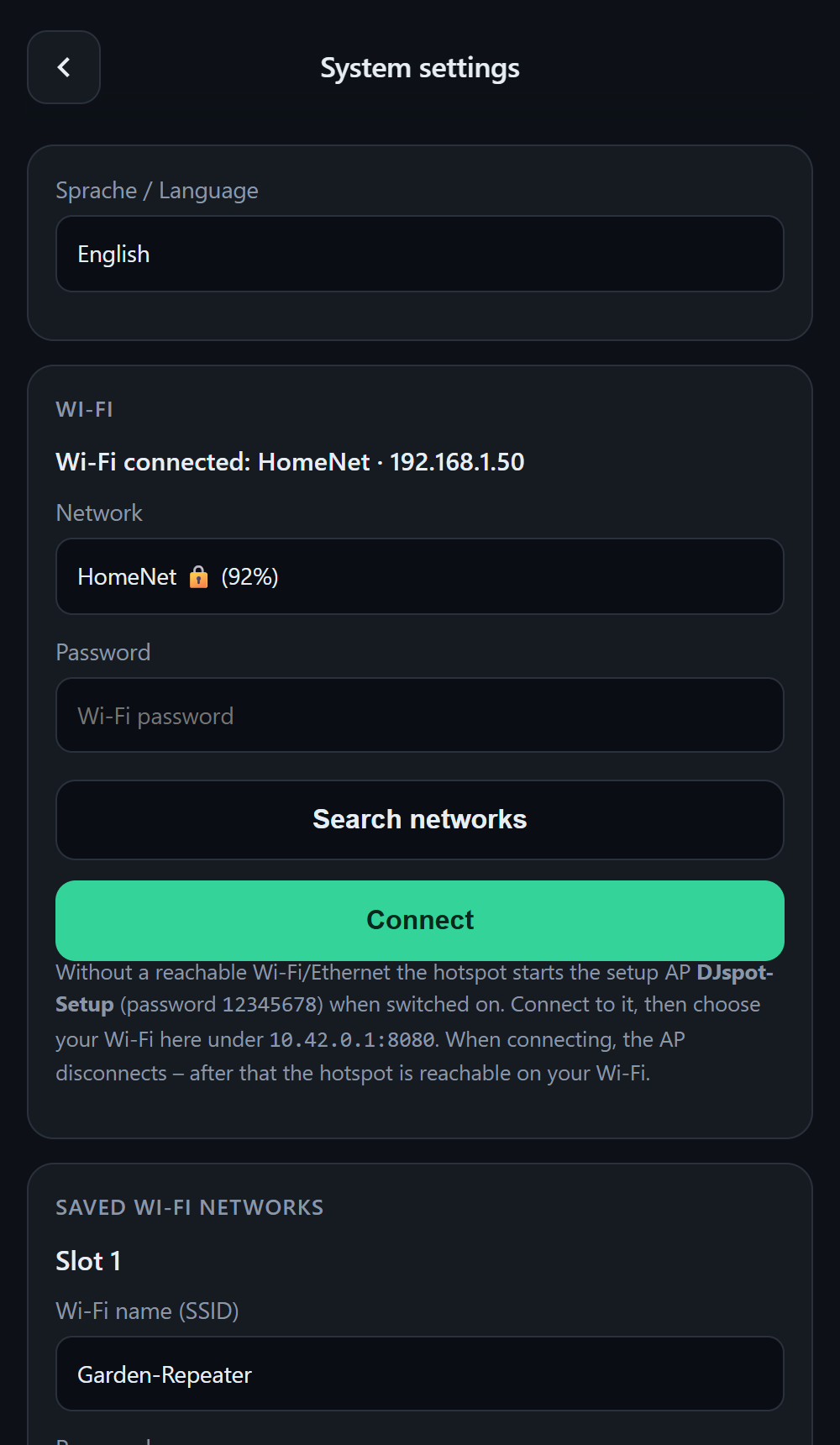
Connect to this network and open http://10.42.0.1:8080/ in the browser. Under System settings → Wi-Fi, select your home network, enter its password and tap Connect. The hotspot then moves to the selected network – the setup AP disconnects in the process (the Wi-Fi module cannot be an access point and a client at the same time). Afterwards the hotspot can be reached at its normal address on your home network. If the connection fails, the setup AP comes back by itself.
Note: hotspots installed before version 0.6.1 still use the old AP password djspot-setup.
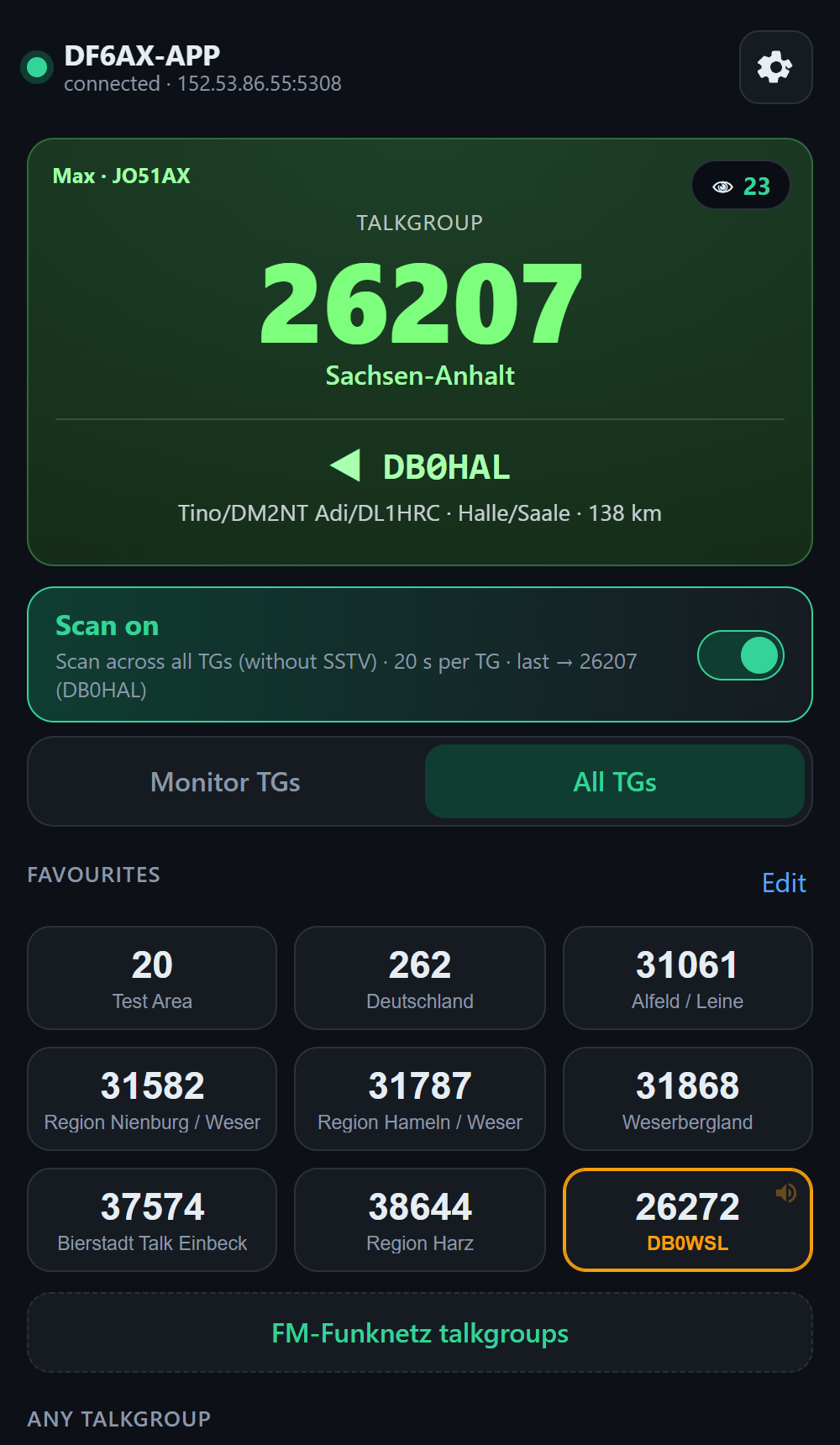
The main page (operation)
- Callsign and status at the top left: the configured callsign and whether the hotspot is connected to the FM-Funknetz.
- Talkgroup (TG): large in the middle – the TG you are currently active on.
- Who is talking: on receive the display turns green and shows the transmitting callsign with name, location and distance; when your own callsign is transmitting, it turns red. Only stations talking on your talkgroup are shown.
- Scan toggle: directly below the talkgroup – one tap switches scan mode on or off. Below it you choose what is scanned: Monitor TGs or All TGs (see “Scan mode”).
- Favourites: large tiles – one tap switches to that TG immediately. Add (+) or remove (×) them via “Edit”. When someone is talking on a favourite TG, its tile gets an orange frame and a blinking speaker icon, and the speaker’s callsign replaces the name – even while you are on another TG.
- FM-Funknetz talkgroups: button below the favourites – opens the official talkgroup list of the FM-Funknetz: tap a row to switch directly, tick to set favourites (see below).
- Any talkgroup: type in any TG number and switch.
- Eye icon: shows the stations on the current TG; tapping it opens the list with location and distance.
- Activity: who was on which TG and when.
When you change talkgroup, the hotspot announces the new TG over the air, e.g. “Sprechgruppe zwo sechs zwo” (talkgroup two six two, in German; not while scanning). That way you know where you are even without your phone. You can also select the talkgroup directly from the radio via DTMF (see “DTMF control”).
Favourites from the talkgroup list
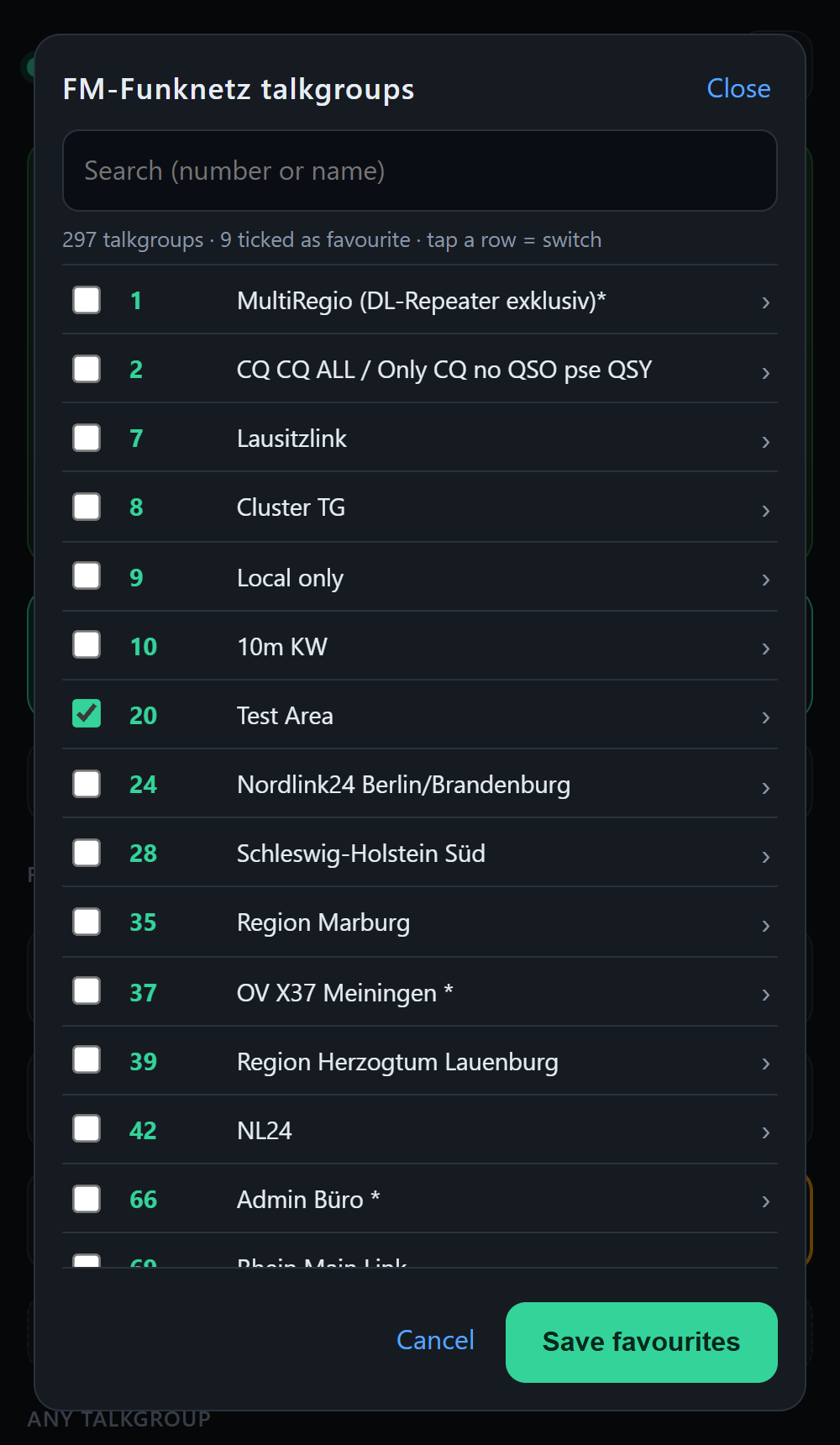
The FM-Funknetz talkgroups button below the favourites opens the official list of all talkgroups of the FM-Funknetz (dashboard.fm-funknetz.de, cached by the hotspot and refreshed regularly).
- Search: type a number or part of the name, e.g. “262” or “Bayern”.
- Tap a row (number or name) to switch to that TG immediately – no need to save it as a favourite. The current TG is highlighted and marked “active”. Ticks you have already changed are saved along with it.
- Tick = favourite, untick = no longer a favourite. Existing favourites are already ticked when the list opens.
- Save favourites applies the selection. The order and your own names of existing favourites are kept; new ones are added at the end with the name from the list.
- Your own TGs that are not in the official list appear in italics and can be unticked as well.
System settings (gear icon at the top right)
- Sprache / Language: interface in German or English. Without a choice it follows the browser language; each browser remembers its choice.
- Wi-Fi: search for and connect to your home network – also for moving to a different network (see “Setup without a network”).
- Saved Wi-Fi networks: up to 4 networks with passwords that the hotspot joins by itself (see below).
- FM / radio module: frequency, CTCSS tone, squelch, bandwidth.
- Roger beep: off, simple tone or Morse K (see below).
- DTMF control: select the talkgroup from the radio via DTMF – can be switched on and off (see below).
- Network / reflector: callsign, hosts, port and auth key. A changed callsign appears at the top of the main page as soon as you save. You switch the active TG on the main page.
- Scan mode: monitor TGs, start TG, excluded TGs and dwell time (see below).
- Station / location: name, location and QTH locator (e.g. JO51ax). These details are sent to the FM-Funknetz – so other users see you with location and distance.
- APRS: optional position beacon to APRS-IS (requires a valid location). Interval from 5 minutes to 2 hours; the symbol (e.g. repeater, house, car) is selectable, and under “Custom symbol” any other APRS symbol (2 characters, e.g. /r).
- Audio levels: RX volume (radio → network), TX volume (network → radio), radio module volume.
- Expert: switch de-emphasis and pre-emphasis on and off (see below).
- Software: checks for new versions and installs the update at the press of a button.
- Services: status of the background services with restart and log.
- System: restart or shut down the Raspberry Pi (see below).
Saving without needless reconnects: a save button only restarts SvxLink if something has actually changed. Every restart briefly logs the hotspot in to the FM-Funknetz again – everyone on the network sees that. The message after saving shows “restarted” or “without restart”.
Saved Wi-Fi networks
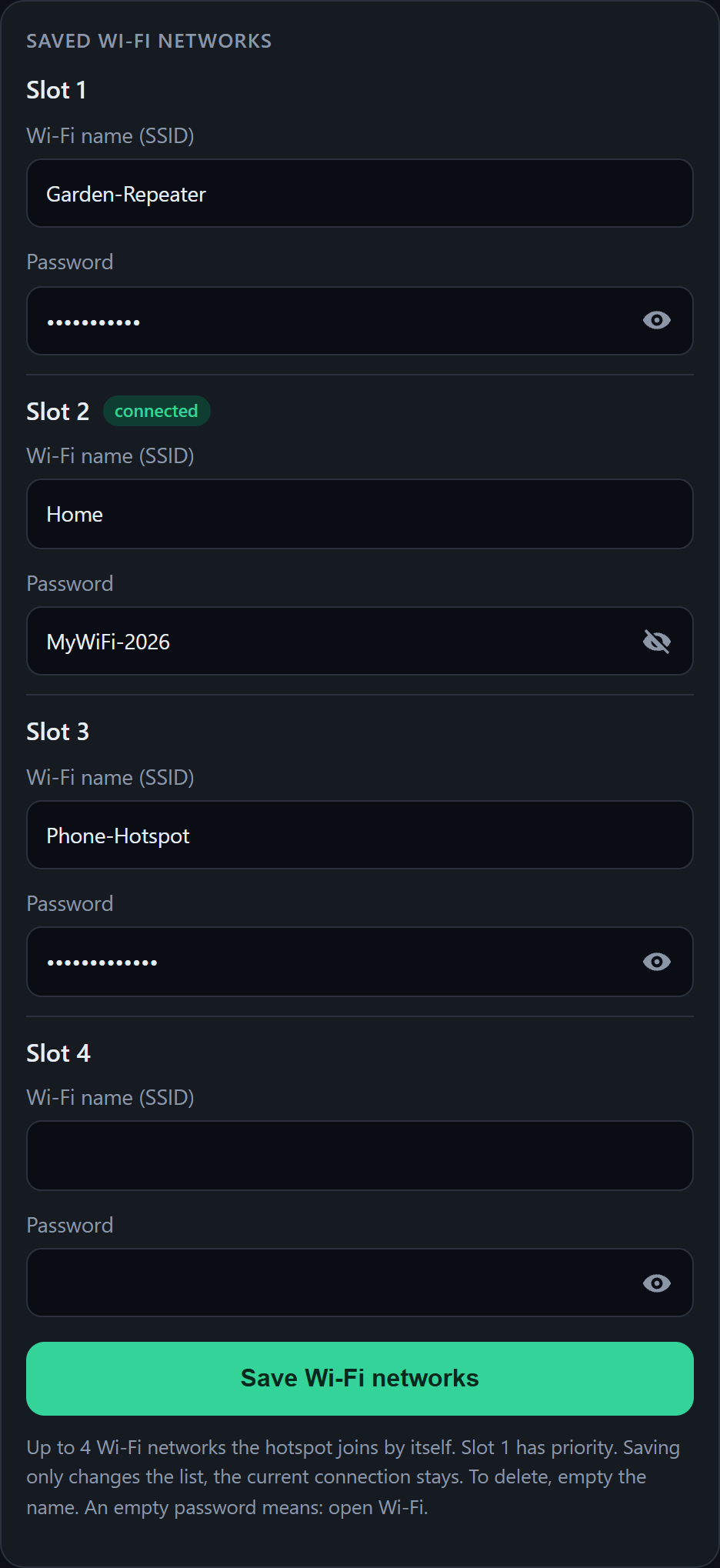
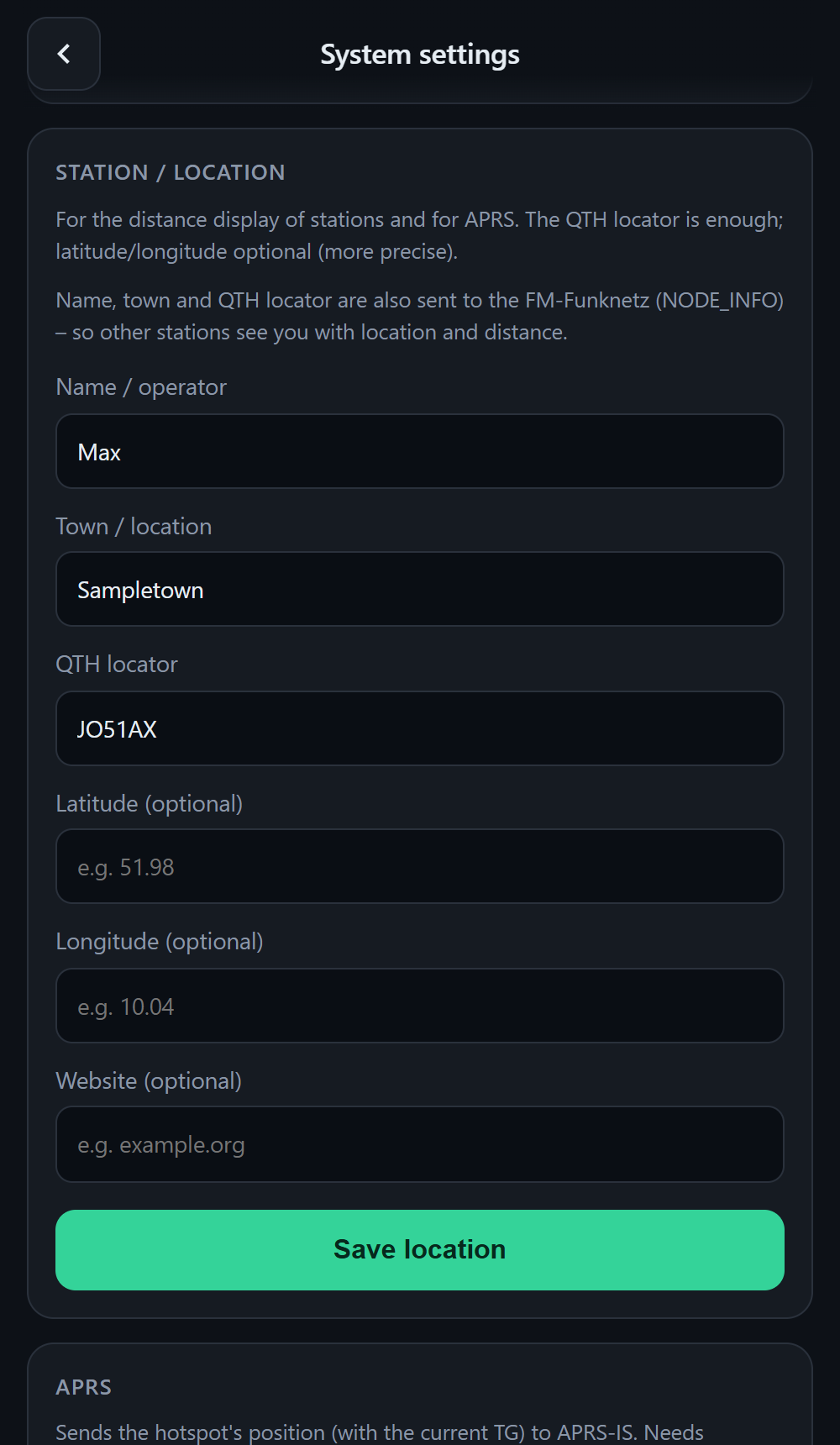
Under System settings → Saved Wi-Fi networks there are up to four networks that the hotspot connects to by itself when it starts or after losing the connection – handy for home, a garden repeater and your phone’s hotspot on the go. Networks already set up appear here automatically.
- Order: if several networks are in range, slot 1 takes priority, then 2, 3, 4.
- Show password: the eye on the right of the password field shows and hides the password.
- Save: “Save Wi-Fi networks” only changes the list. The current connection stays up; a changed password applies from the next connection.
- Delete: clear the network name and save. The network marked connected cannot be deleted while the hotspot is reachable through it.
- Open network: leave the password empty. Otherwise 8 to 63 characters are required.
Tip: a mistyped password is no problem – if the hotspot finds no Wi-Fi when it starts, it opens the setup AP DJspot-Setup and you can correct it.
Courtesy tone
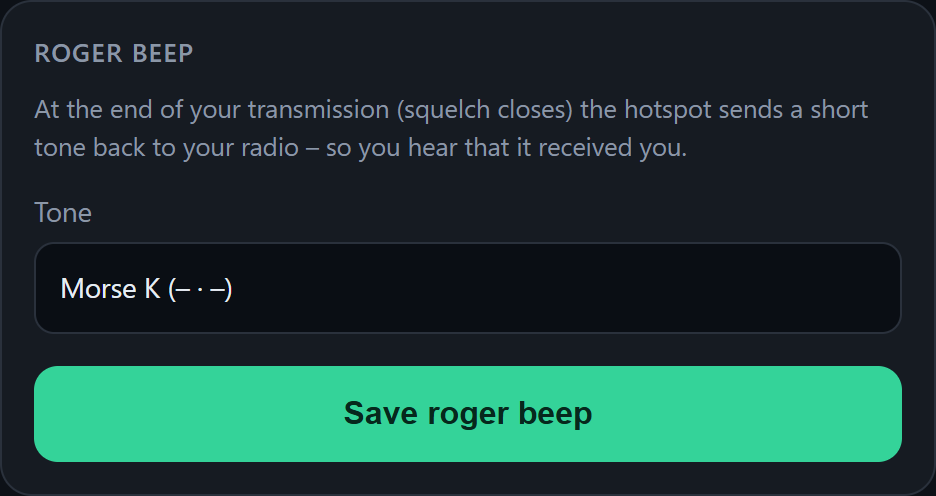
At the end of your own transmission – as soon as you release PTT and the squelch closes – the hotspot sends a short tone back to your radio. That tells you it has received you. Under System settings → Roger beep you choose:
| Setting | Sound |
|---|---|
| off | no roger beep |
| simple tone (1000 Hz) | short beep, 150 ms – default |
| Morse K (– · –) | the letter K (“over”), 1000 Hz, 20 wpm, approx. 0.5 s |
“Save roger beep” takes effect immediately – SvxLink is not restarted for it, and the connection to the FM-Funknetz stays up.
DTMF control (selecting the talkgroup from the radio)
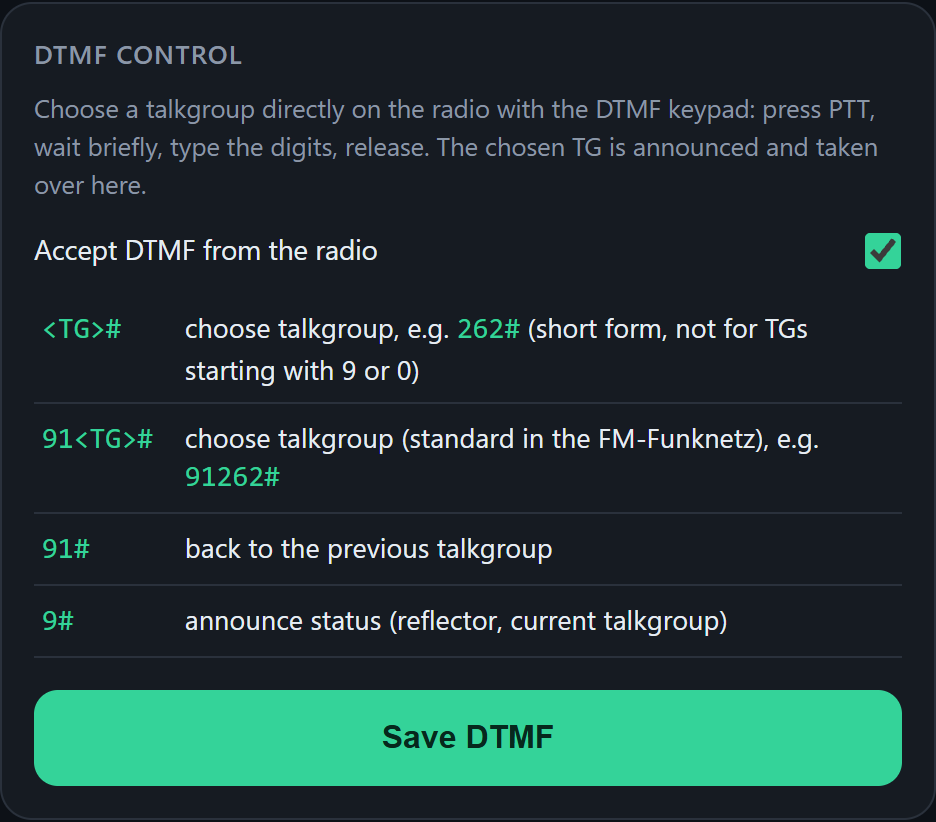
With your radio’s DTMF keypad you select the talkgroup directly – no phone needed. Here is how: press PTT, wait briefly (until the hotspot hears you), key the digits and #, release PTT. The hotspot announces the new talkgroup, and the web interface also shows it after a few seconds.
| Input | Effect |
|---|---|
| <TG># | select talkgroup, e.g. 262# = TG 262 (short form; not for TGs starting with 9 or 0) |
| 91<TG># | select talkgroup – standard in the FM-Funknetz, e.g. 91262#; works for any TG, e.g. 919990# = TG 9990 |
| 91# | back to the previous talkgroup |
| 9# | announce status (reflector connected, current talkgroup) |
The DTMF tones are not passed on to the network. Under System settings → DTMF control you can switch decoding off – e.g. if other stations are active on the frequency who should not be able to switch.
Scan mode
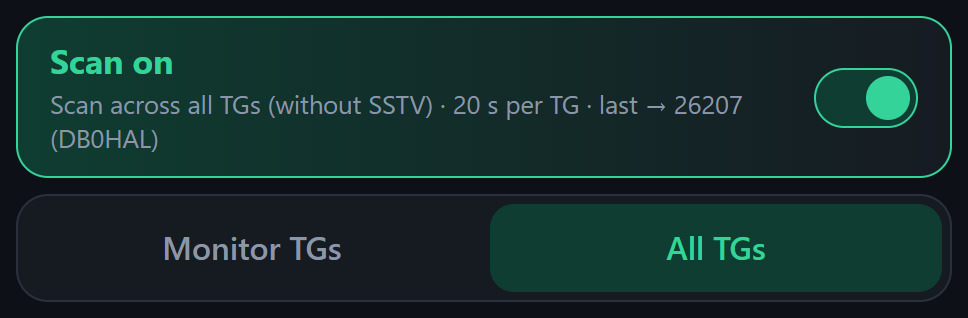
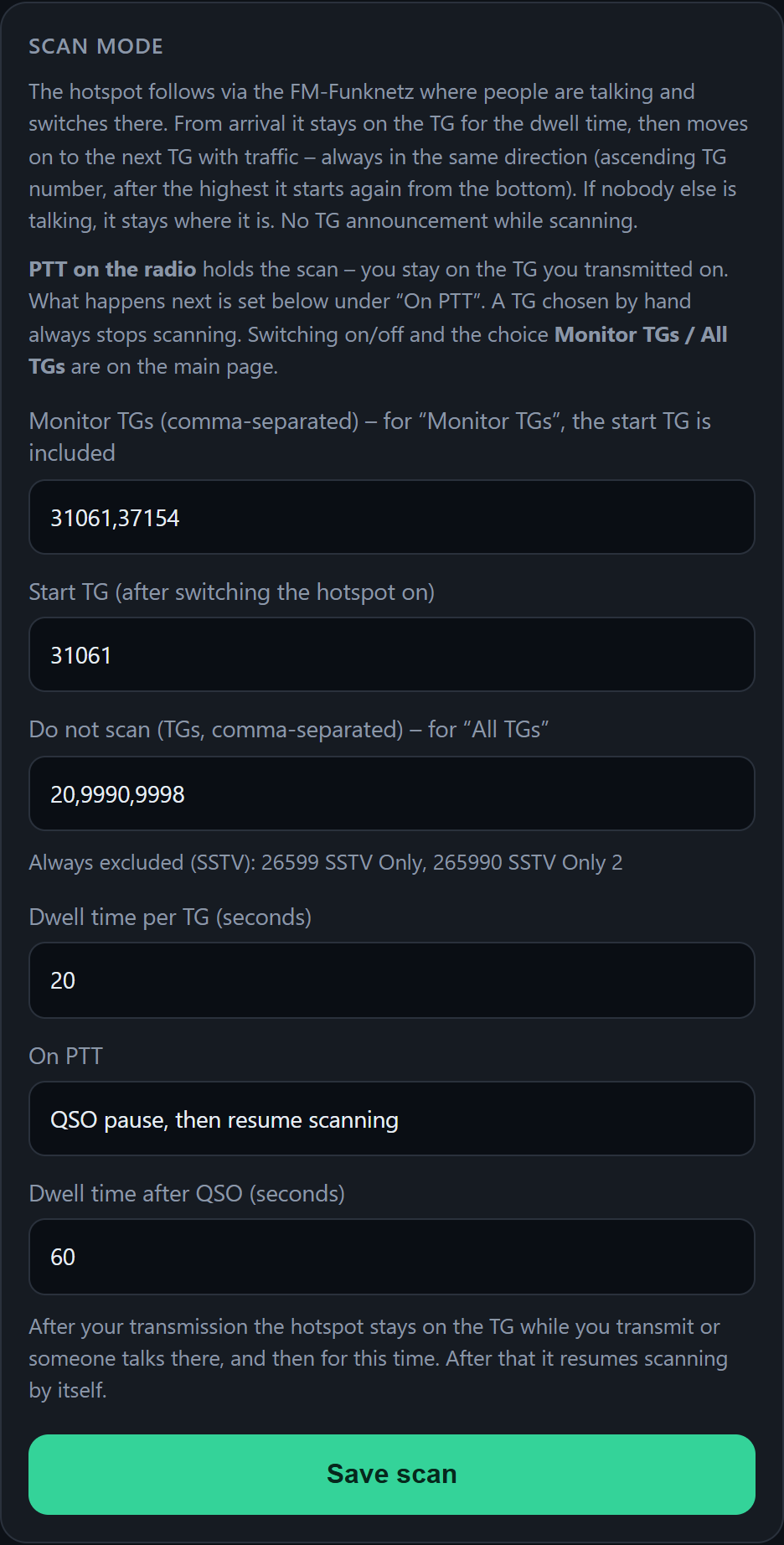
In scan mode the hotspot itself looks for where someone is talking on the FM-Funknetz and switches there. You switch it on and off on the main page with the “Scan” toggle directly below the talkgroup. Below it you choose with one tap what is scanned – this also works while scanning:
| Scan type | What is scanned |
|---|---|
| Monitor TGs | the start TG and your list of monitor TGs, e.g. 262,2620,31061 |
| All TGs | every talkgroup on the FM-Funknetz – except the SSTV TGs (image transmission, e.g. 26599) and the TGs you exclude |
How scanning works (like the timed scan on a radio):
- When someone talks on a TG that matches the scan type, it switches there – without a TG announcement, so you hear the start of the transmission.
- From arrival it stays on the TG for the dwell time (default 20 seconds). Then it moves on to the next TG where someone is talking – even if someone is still talking on the current TG.
- It always scans in the same direction: ascending by TG number, after the highest it starts again from the bottom.
- If nobody else is talking, it stays where it is.
- PTT pauses scanning: when you press the transmit key on your radio, the hotspot stays on this TG. What happens next is set under “On PTT”: Stop scanning – scanning is off and is switched back on only by hand with the scan toggle, which then shows “stopped by PTT”. Or QSO pause – the hotspot stays while you transmit or someone talks on the TG, and then for the “Dwell time after QSO”; after that it resumes scanning by itself. The scan toggle then shows “QSO pause · resuming in … s”. A TG chosen by hand (favourite, free entry, TG list, DTMF) always stops scanning.
- The scan toggle shows what is being scanned and where it last jumped to, e.g. “last → 882 (DA1RP-TRX)”.
Set once under System settings → Scan mode:
| Setting | Meaning |
|---|---|
| Monitor TGs | the talkgroups for the “Monitor TGs” scan type, separated by commas |
| Start TG | your home talkgroup: the hotspot starts on it after switching on, and it is always part of “Monitor TGs” |
| Do not scan | TGs skipped with “All TGs”, e.g. 9,99. The SSTV TGs are always excluded and are listed below the field. |
| Dwell time per TG | how long (in seconds) the hotspot stays on a TG from arrival before moving on (5–600, default 20) |
| On PTT | Stop scanning: your own transmission switches scanning off. QSO pause: scanning pauses for the QSO and resumes by itself afterwards |
| Dwell time after QSO | QSO pause only: how long (in seconds) the hotspot stays on the TG after the last transmission on it before it resumes scanning (10–3600, default 60) |
How the hotspot knows where people are talking: the FM-Funknetz reports every speaker on every TG via its MQTT service. Without an internet connection to it, the hotspot does not scan; the scan toggle then says so. Switching scanning on or off and changing the scan type do not restart SvxLink.
Expert settings: pre- and de-emphasis
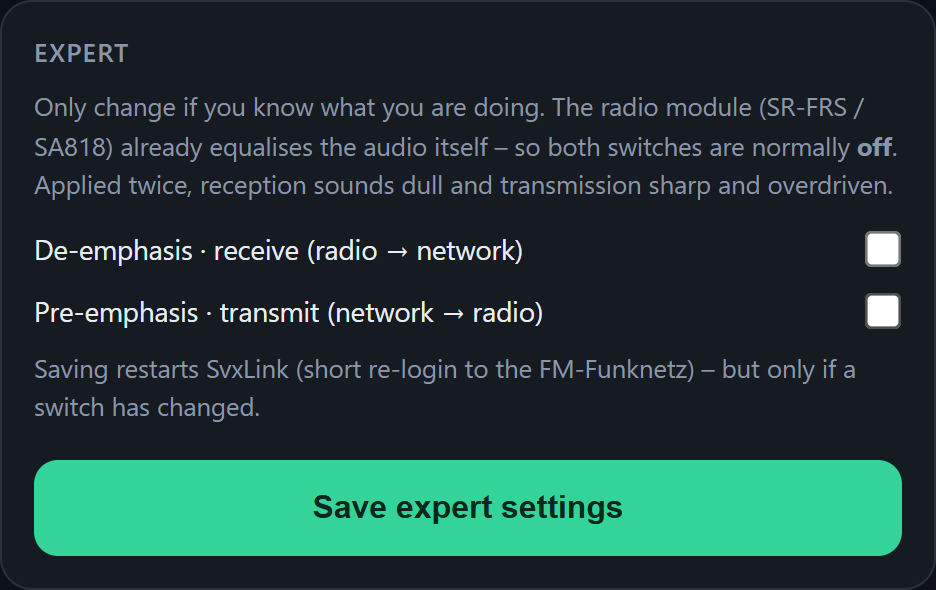
FM radio boosts the high frequencies on transmit (pre-emphasis) and cuts them again on receive (de-emphasis). The AX-Spot’s radio module (SR-FRS or SA818) already does both itself. Under System settings → Expert you can nevertheless switch on additional equalisation in SvxLink:
| Switch | Effect |
|---|---|
| De-Emphasis · Empfang (receive, radio → network) | cuts the treble of the received signal before it goes into the network |
| Pre-Emphasis · Senden (transmit, network → radio) | boosts the treble of the network audio before it is transmitted over the air |
Default: both off. Applied twice, receive sounds dull and transmit sounds harsh and overdriven. Only switch them on if a radio module delivers flat, unequalised audio. “Save expert settings” restarts SvxLink – but only if a switch has changed.
Restart and shut down
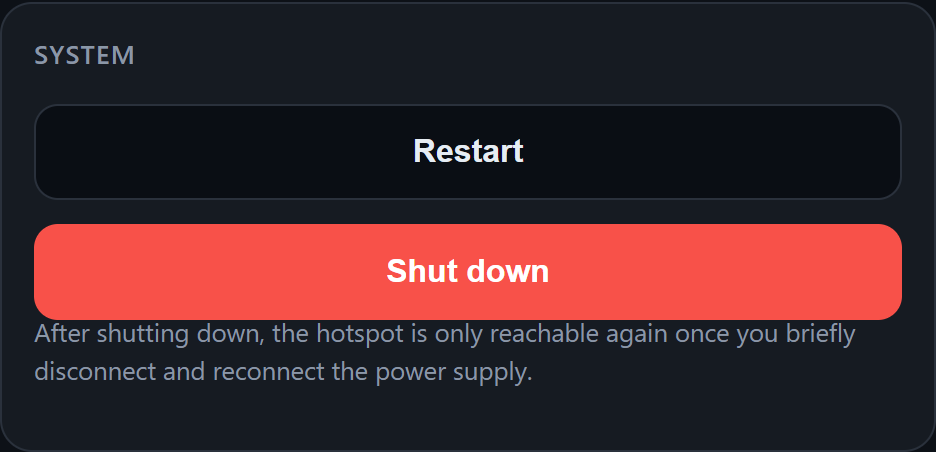
Under System settings → System:
- Restart: after a confirmation prompt the Raspberry Pi restarts. The hotspot is unreachable for about 1–2 minutes; the page then reloads by itself.
- Shut down: after a confirmation prompt the Raspberry Pi shuts down. After about 20 seconds the power can be disconnected. To switch it back on, briefly disconnect and reconnect the power supply.
Operating notes
- Without scan mode, the hotspot automatically selects the last TG set after switching on and after every reconnection, and announces it. It stays active permanently. With scan mode it starts on the start TG and scans onwards from there.
- Unchanged settings do not trigger a restart; changed ones (network, DTMF, expert settings, location) briefly log the hotspot in to the FM-Funknetz again. Scan mode is not one of them.
- Without a web password, anyone on the same network can change settings and transmit – only operate it on a trusted home network.
- For tone squelch operation, choose the CTCSS tone under “FM / radio module”; “off” = open carrier squelch.
Troubleshooting
| Problem | Check / solution |
|---|---|
| The top shows “disconnected” | Check network/internet; restart svxlink under Services. |
| The other station hears nothing | Increase the RX volume; check the antenna on the radio module. Is the handheld transmitting the configured CTCSS tone (TX tone)? |
| Short burst of noise in the handheld after every transmission | Squelch tail of the handheld: switch on tone squelch (CTCSS receive) there; switch off the roger beep if necessary. |
| Received audio sounds dull, or transmitted audio harsh/overdriven | Switch de-emphasis and pre-emphasis off under “Expert”. |
| DTMF selects the wrong TG or none | After pressing PTT, wait briefly before keying – otherwise the first digit is lost. Is DTMF control switched on in the settings? |
| No roger beep / no TG announcement | Check the roger beep setting; increase the TX volume; restart the hotspot. |
| No location/distance | Enter a valid QTH locator under Station / Standort. |
| Talkgroup list is empty | The hotspot downloads the list from the internet on first start – wait a moment and open it again; check the internet connection. |
| Hotspot jumps to other TGs | That is scan mode: check the scan type (Monitor TGs / All TGs) on the main page, add TGs under “Do not scan” or switch scanning off. |
| Scanning switches itself off | PTT on the radio (with “Bei PTT: Scan stoppen”) or a TG chosen by hand stops scanning – this is intended. Switch it back on with the scan toggle or set “On PTT” to “QSO pause”. If an unrelated signal without tone opens the squelch, that counts too: set a CTCSS tone under “FM / radio module”. |
| Hotspot does not join the Wi-Fi | Check the name and password under “Saved Wi-Fi networks”; mind upper and lower case. |
| Hotspot no longer on the Wi-Fi | After a short time it opens the setup AP DJspot-Setup (password 12345678) – reconnect it from there. |
© Frank, DF6AX · https://df6ax.de · AX-Spot FM hotspot · Voice announcements: voice “Thorsten” (Thorsten-Voice, CC0)